Beowulf
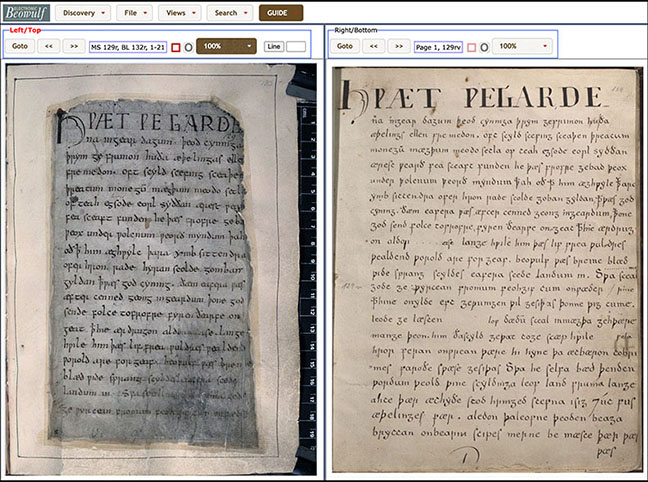
The default opening for the Electronic Beowulf presents the Edition on the left and the Manuscript on the right. This setting is recommended for searches.
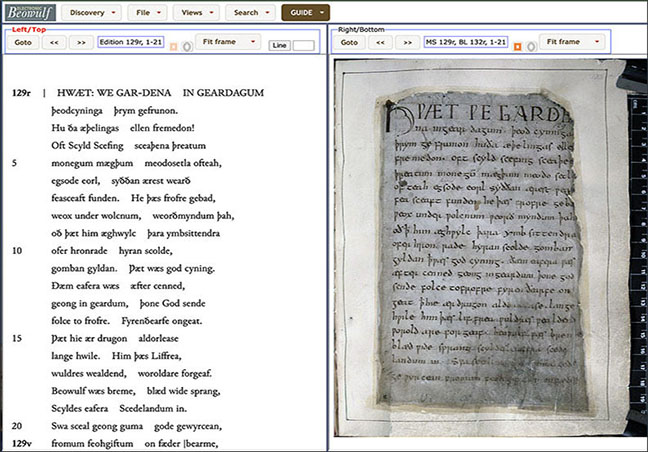
As one clicks the Next  and Previous
  navigation buttons on the left Edition side, the Manuscript on the right side changes pages with it. Other ways to arrange the text depending on circumstances are discussed below.
Selecting by Folio or Line Ranges
With this setting the 'GoTo' presents a menu of Beowulf gatherings, arranged by consecutive folios and including line ranges.
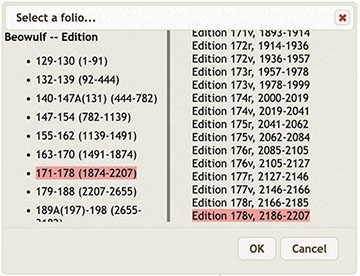
To set the 'GoTo' menu with line ranges, go to 'Views' > 'Change view' and either set the Left Selection to 'Edition' and the Right to 'Manuscript' or set the 'Master' (the window that controls the movement of both windows) to the 'Right/Bottom'. See also Setting Other Views.
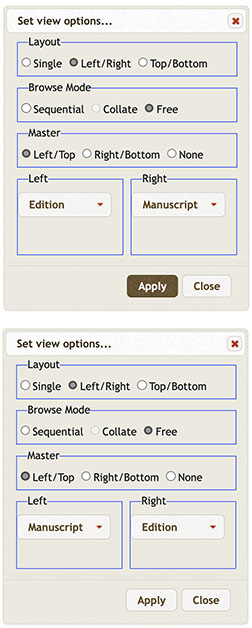
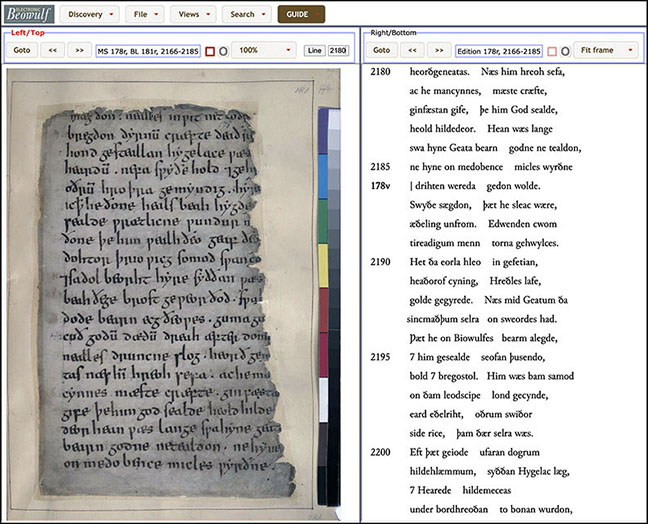
In both cases, the image of the Manuscript folio corresponding to Edition will open, too. In either case, the red highlighting in the top menu indicates which side (in this example, Right) is the lead for the Next and Previous navigation buttons.
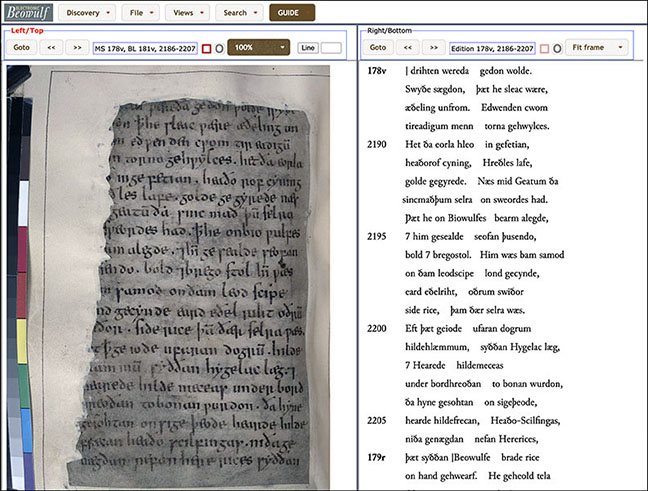
Find Line and Show Image
To find a specific line in the Edition with its corresponding folio, simply type the line number in the 'Line' window on the right of the top menu and press Return. The chosen line appears at the top of the text window. The corresponding folio image will open whenever a line number is sought, even in the customized setting with Manuscript on the left.
Setting Other Views
While the default setting works best for the image-based edition, there are cases when the user will want to create customized settings from Views > Change Views.
Master controls sequential progression of images when viewing two texts simultaneously. Left/Top frame is default Master, but may be reset. When set to None, Master allows independent progression of texts (by Goto or by the Next and Previous navigation buttons on the top menu).
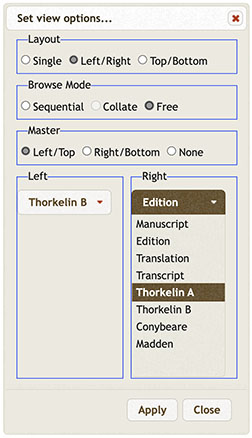
When customizing the Layout, Browse, or Master settings, the reader will still find it most efficient to keep MS, and other texts that follow MS folio ranges (i.e Edition, Transcript, and B) as Master or lead files, because folio ranges occur randomly in the other comparative texts (i.e., Thorkelin A, Conybeare, and Madden).
With the MS folio range in the lead, the reader may turn pages and Thorkelin A (Matthews), Conybeare, and Madden will turn only when the same range begins in their respective texts. (Note that because Thorkelin himself always copied folio-by-folio, Thorkelin B always turns with the MS folio.)
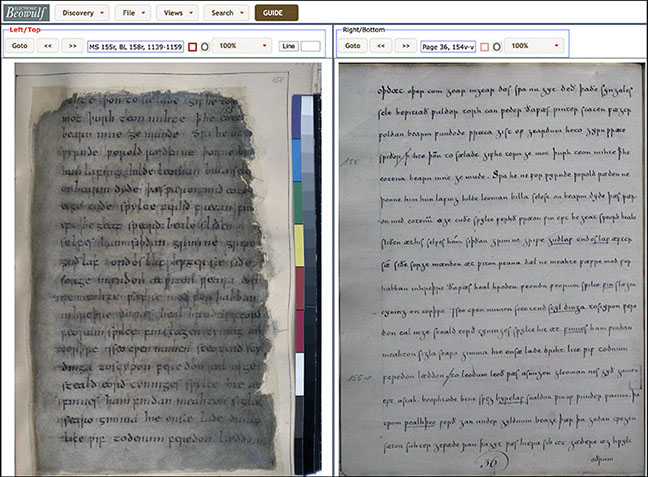
In the example above, Thorkelin A will not move when the user changes from MS fol. 155r to 155v, because both folios begin on the same page in A.
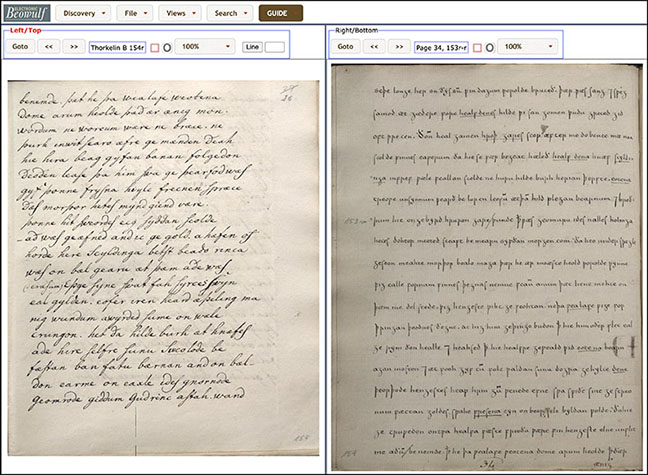
Likewise, in the following example, Thorkelin A does not move when Thorkelin B moves from folio 153v to 154r, because fol. 154r begins in the last line of this page in Thorkelin A.
Readers will find it most convenient to use MS or B as lead files with Conybeare or Madden for the same reason.
Because the number of pages in different texts varies, however, readers may in some cases find it most efficient to set Browse Mode to Free and Master to None when viewing combinations such as Conybeare and Madden, whose interleaves differ. The user can specify exact combinations of pages of interest after setting the Views > Change View > 'Selection' panels through the drop-down 'GoTo' menus.
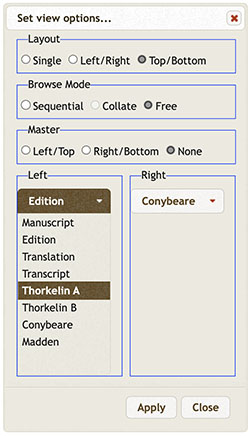
Selection: This panel lists in parallel menus the texts that are available for comparison:
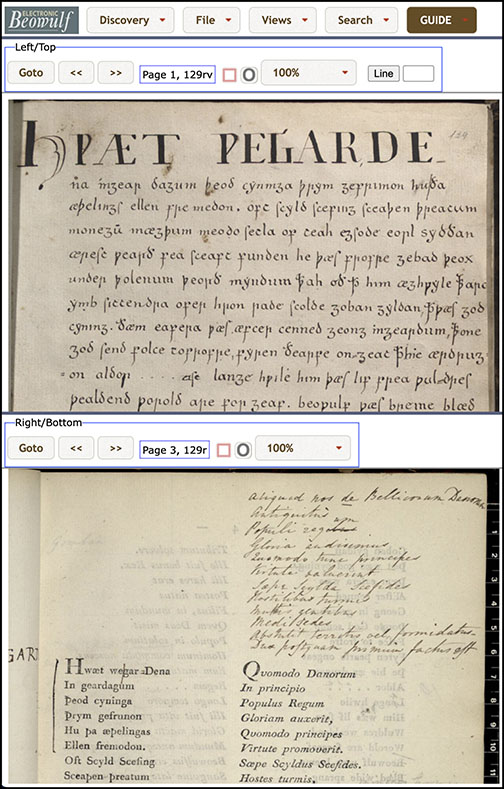
The reader may arrange the texts in various ways, and may adjust the sizes of the viewing areas by moving the center bar or by increasing the size of the browser window. Here Thorkelin A appears in the top panel, and Conybeare's Collation in the bottom panel, with the size of viewing areas the same.
Comparing Texts
Students primarily interested in Beowulf may well wish to compare images of the manuscript or the edition with other related texts, as well. Electronic Beowulf is set up to make these comparisons easily accessible. First click 'Views' and 'Change view' on the toolbar to open the 'Set view options' menu.
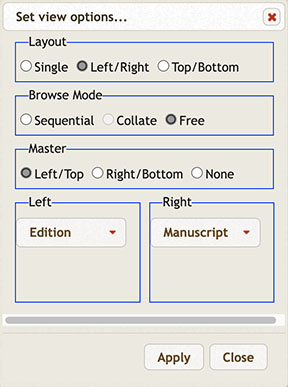
There are eight texts in each drop-down menu. As a reader might want to compare different pages of the same text, there are 32 possible comparisons one might make. Simply make a selection from each side of the drop-down menu to view any two of these combinations side by side.
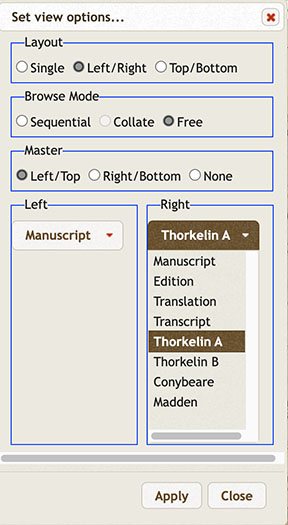
In this case, if the Layout is kept at 'Left/Right', the Manuscript will appear on the left and Thorkelin A on the right after clicking 'Apply'.
Collate
The easiest and most fruitful way to collate the Beowulf manuscript leaves is in the context of its composite codex, Cotton Vitellius A. xv. For details and instructions, see Collate below.
Cotton Vitellius A. xv
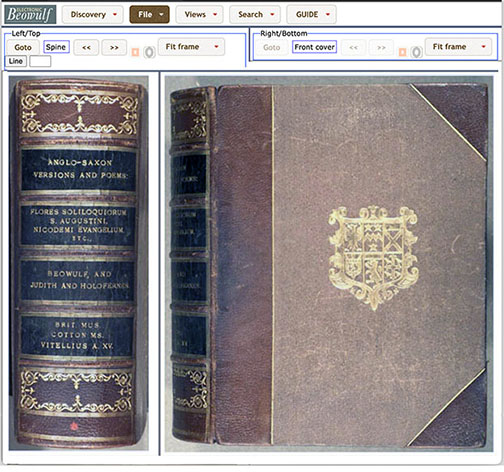
In addition to Beowulf and all its supplementary texts, readers also have access to images of the entire composite codex, BL MS Cotton Vitellius A. xv, including the Southwick Codex and the Nowell Codex, the latter containing Beowulf as its fourth item.
Arranging a Layout
As with Beowulf, one sets up the viewing options by clicking 'View' > 'Change view' to open the 'Layout' menu.
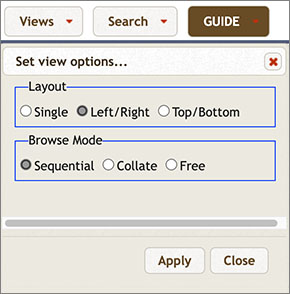
The default setting is 'Left/Right' to read the codex naturally as a book (verso left, recto right), but some readers may prefer 'Single' or 'Top/Bottom' layout for the largest possible widths on small screens. See below for 'Browse Mode' settings.
Choosing a Text
The 'File' menu lists all choices of text. The default under 'Cotton Vitellius A. xv' is 'Beowulf Manuscript'.
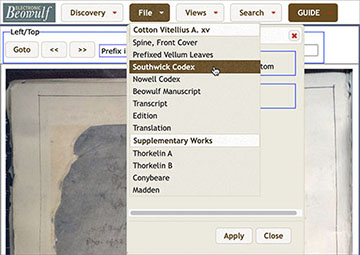
However, if one chooses instead Prefixed Leaves, Southwick Codex, or Nowell Codex, the choices from the 'GoTo' menu change from Beowulf gatherings to all the texts and gatherings in the codex.
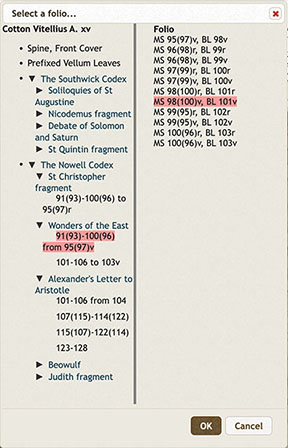
Selecting a Folio
When a gathering is selected, the list of folios in that gathering appears on the right. The reader may then choose to open any folio in the list.
Selecting a Browse Mode
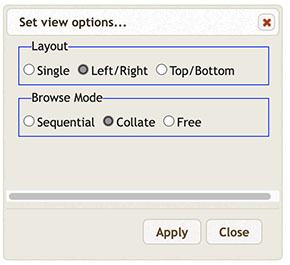
Open the 'Browse Mode' selection panel from 'View' > 'Change view':
Sequential page-turning
The default opening for the facsimile of Cotton Vitellius A. xv is with versos on the left and rectos on the right, the normal view for any book or codex.
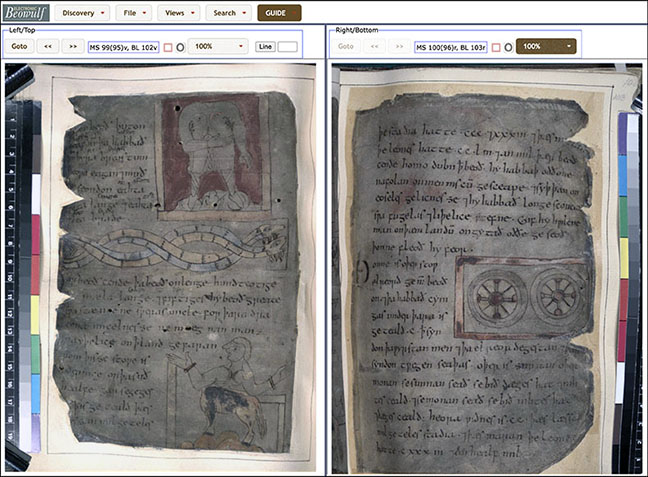
To advance forwards or backwards page by page, use the Next NavigationButtons-Right and Previous NavigationButtons-Left navigation buttons on the top menu. To select a specific folio, return to the 'GoTo' menu.
Collating Leaves in Gatherings
To examine the sheet and leaf arrangements in the gatherings of, for example, the Southwick Codex, choose 'Views' > 'Change view', select 'Collate', and press 'Apply':
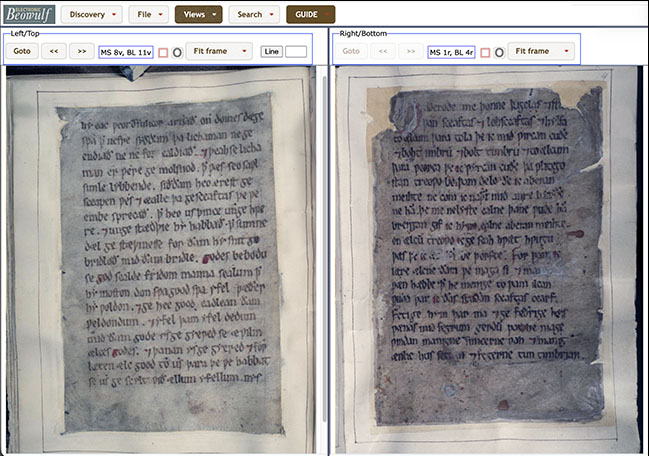
In this case, the outside sheet of the first gathering of the Southwick Codex has fol. 8v on the left, and fol. 1r on the right. In other words, these two leaves once formed a single folded sheet:
If one were to turn over this sheet (as this feature simulates by advancing with the Next navigation button), fol. 1v would be on the left and its conjugate leaf, fol. 8r, would be on the right, as follows:
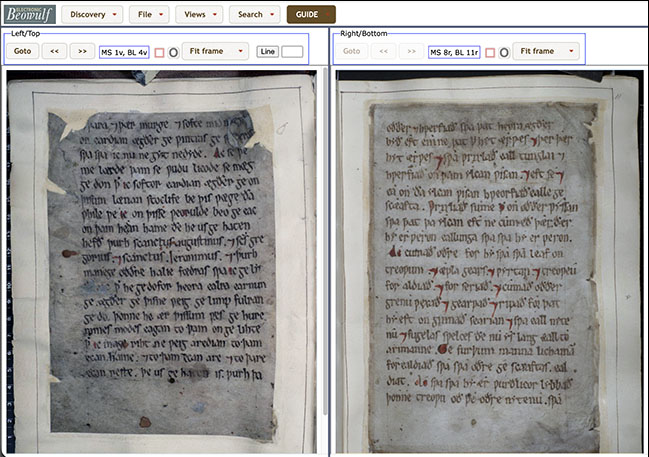
Continue examining the make-up of this gathering by pressing the Next navigation button. For details on all the gatherings of Cotton Vitellius A. xv, see Kiernan, 'The History and Construction of the Codex,' part 2 of Beowulf and the Beowulf Manuscript, pp. 65-169.
Free Association
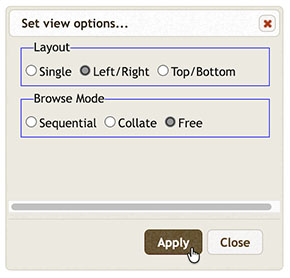
One can also set a completely free association of folios by choosing 'Free' in the 'Browse Mode' panel:
In this example, the first page of the Nowell Codex, with Laurence Nowell's name at the top, is set beside the first page of Alexander's Letter to Aristotle, the third item in the codex.
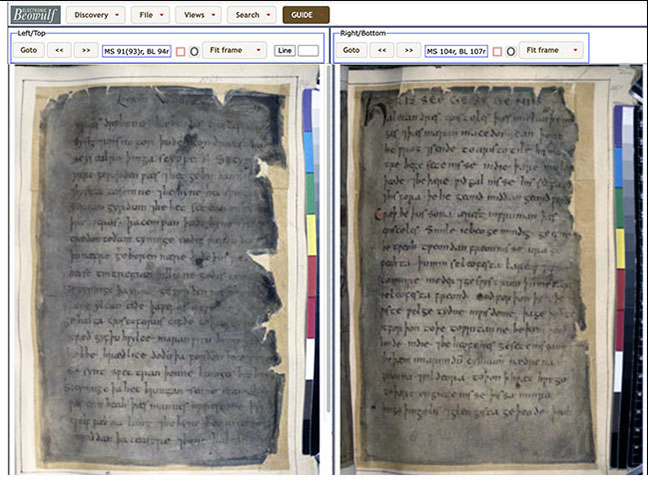
In 'Free Association' a reader might compare the script of the same scribe in different texts, or experiment with the presumed sheet collation.