Search Facilities
The Default Setting
The default setting with Edition or Transcript on the left and Manuscript on the right has clear advantages over other settings when using Search. With this setting in effect, all 'Edition Search' and 'Transcript Search' results are linked to the respective Edition or Transcript and to their corresponding folios.
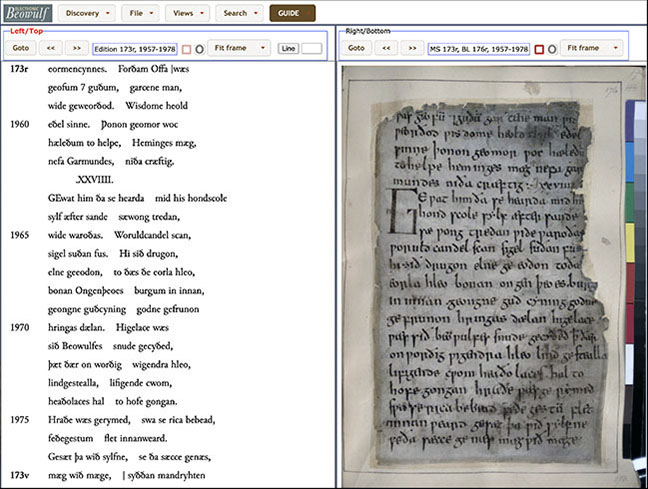
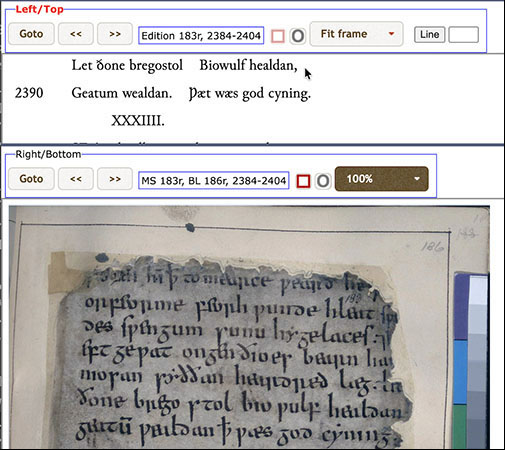
By double-clicking on any result, the reader is taken to the line in the matching Edition or Transcript (whichever is open), and the image of the corresponding folio opens, as well. If a customized setting is in effect, the results still link to the respective Edition or Transcript, but the corresponding folio will not open.
Opening a Search
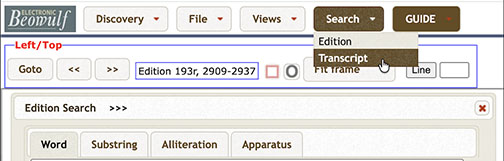
There are many ways to search the electronic edition. To open a Search panel, click 'Search' on the top menu and choose 'Edition' or 'Transcript' to open the appropriate panel.

The panel offers many ways to search the edition: by word, substring, alliteration, and critcal apparatus (for emendations, early restorations, and editorial restorations). The user can control the search ranges by lines, folios, fitts, or scribes.
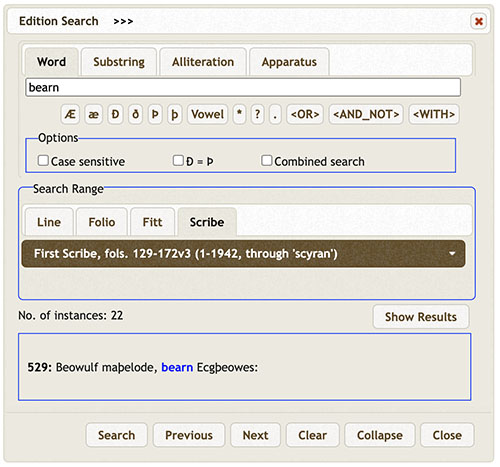
In this case, a Word search for bearn is limited to the first scribe's section. Pressing the 'Show Results' button provides a list of the twenty-two occurrences, and clicking any one opens the edition to that line.
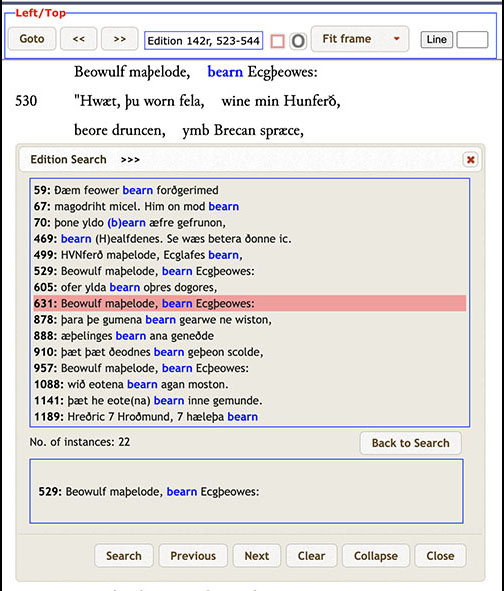
The MS will advance to the corresponding folio, as long as the default setup with text left and MS right is used.
Changing the Search Window
Follow the same process for a 'Transcript' search.
Searching by Word, Substring, Alliteration, and structured Apparatus
Searches for Old English words in the Edition are straightforward, but problemmatic in the Transcript, because scribes habitually left spaces within lexical word boundaries. In previous editions, automated markup was based only on scribal spacing.
For this reason, a search for umborwesende or gyldenne in the Edition was successful, but failed in previous editions of the Transcript, because the scribe wrote umbor we on 129v20 and sende on 130v1 and gyl at the end of 130r1 and denne at the start of 130r2.
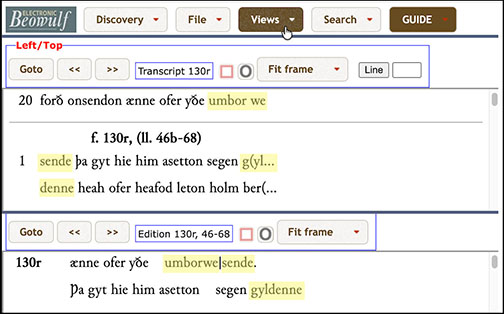
This problem is resolved in the fifth edition of Electronic Beowulf. In the new edition, comprehensive manual (rather than automated) markup retains scribal spacing, but tags for word boundaries of the Edition. Now a search for umborwesende or gyldenne in the Transcript finds scribal umbor we | sende and gyl | denne, despite scribal spacing and hyphenation.
For examples of each method, click the following links:
Symbols
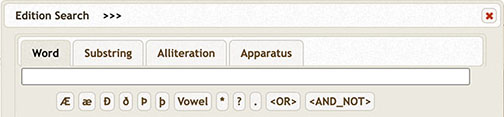
From the Edition Search symbol toolbar, use:
 Æ, æ, Ð, ð, Þ or þ to enter the corresponding letter.
Vowel to represent an undefined vowel.
asterisk (*) to represent an indefinite number of letters.
question mark (?) to represent zero letters or one letter.
full stop (.) to represent exactly one letter.
<OR>, <AND_NOT> and/or <WITH> to perform Boolean searches.
The Transcript Search symbol toolbar also includes keys for accented letters:
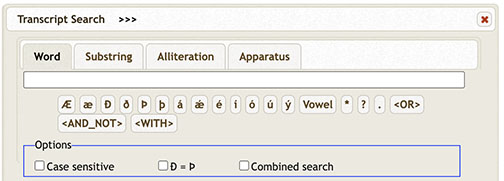
Other options include:
Case sensitive to distinguish upper and lower case (default disregards case).
Ð=Þ treats ð and þ as the same letters in searches.
Combined Search activates <WITH> in Word Search to look for instances of two or more words occurring within the same line.
A search may be narrowed in one of the following ways. Search by:
Line (Edition)
Folio (Edition)
Folio / Line (Transcript)
Fitt (Edition or Transcript)
Scribe (Edition or Transcript)
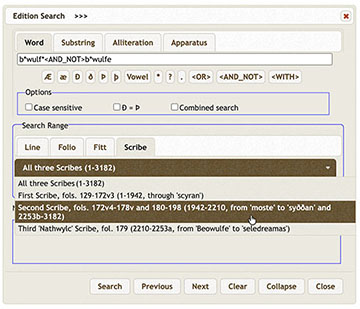
In a search of the Edition by Scribe, one may choose 'All three Scribes,' 'First Scribe,' 'Second Scribe,' or 'Third Scribe.' In this example, the Search is for specific spellings of Beowulf in the work of the Second Scribe.
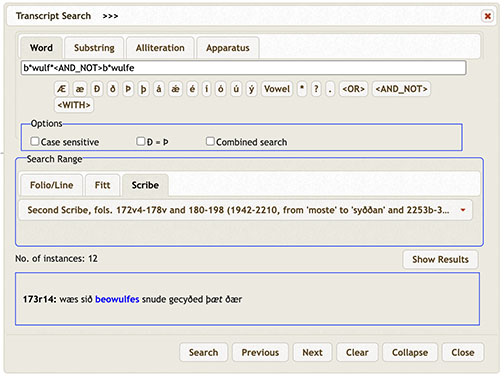
'No. of instances' displays the number results for a search. The first instance appears in the small white screen at the bottom.
'Show Results' reveals all lines containing the search word.
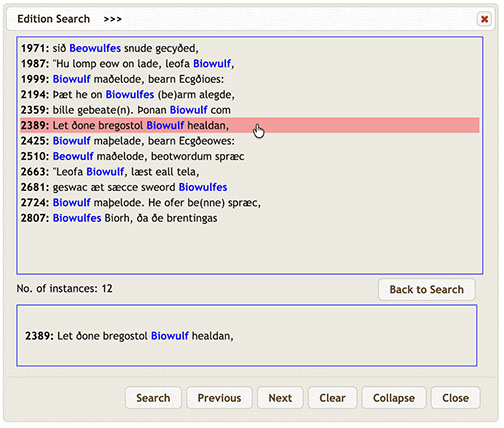
Click any line to go to the line in the Edition or Transcript, which also opens the corresponding MS folio.