Transcript Search: Apparatus
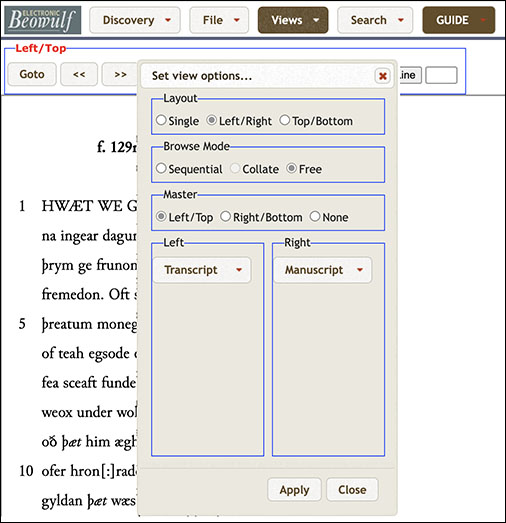
To study the Transcript with the manuscript, choose Views from the top menu and "Set view options" with Transcript left and Manuscript right. Press Apply and Close.
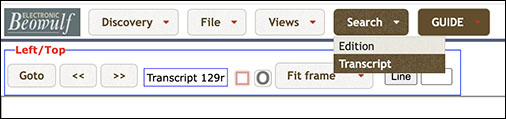
To search the Transcript of the manuscript click on Search in the top menu and then Transcript from its drop-down menu.
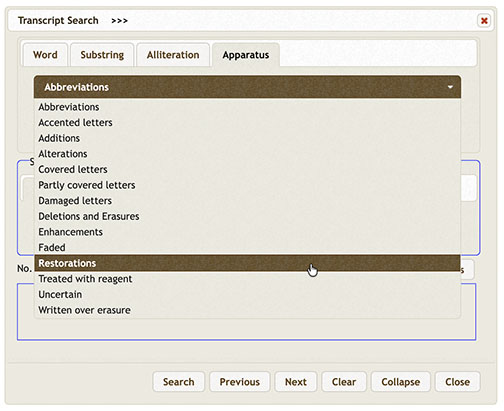
Highlight Apparatus on the toolbar to access the structured search window.
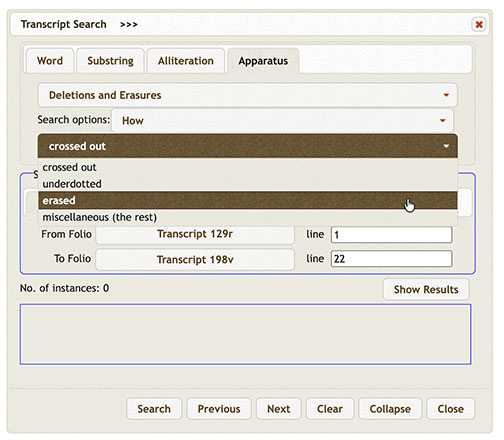
Click Deletions and Erasures and then Comprehensive to discover the various ways (how, by whom, if enhanced) they were made.
Click Abbreviations then Type to access the menu of types of abbreviations that can be searched.
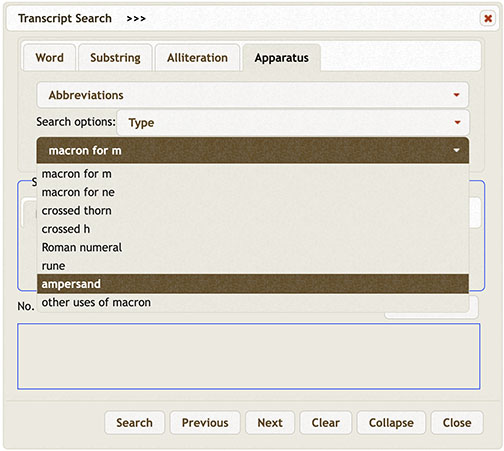
Select 'crossed thorn', for example, then click Search.
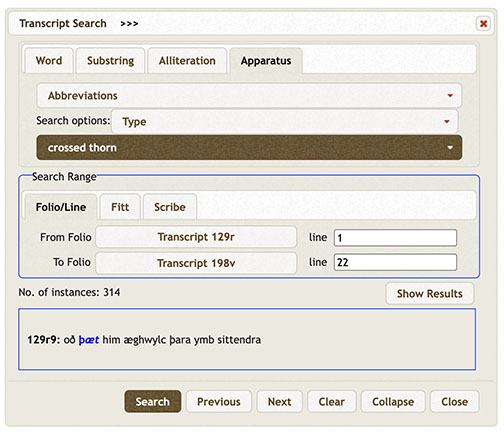
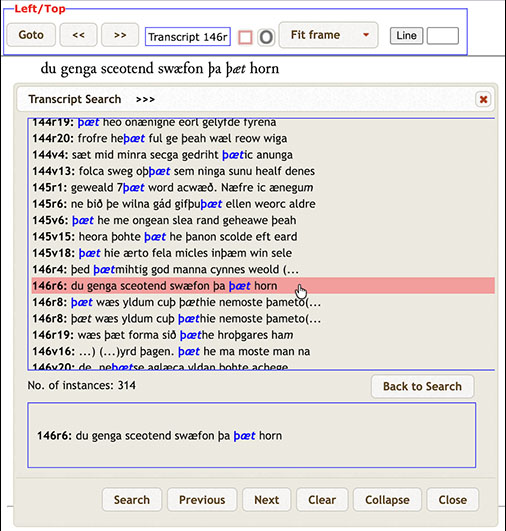
Click the Show Results button to display all search results for 'crossed thorn'. Click on any result in the list and the chosen line will appear at the top of the Transcript and also advance to its folio.
Fitt and Folio Line
Using the many functions of Transcript Search, one can search for a significant number of specific features. For example, select Additions, then Comprehensive. Highlight Fitt and select Fitt XXXVIII for the entire range to find additions only in that fitt. Click Search.
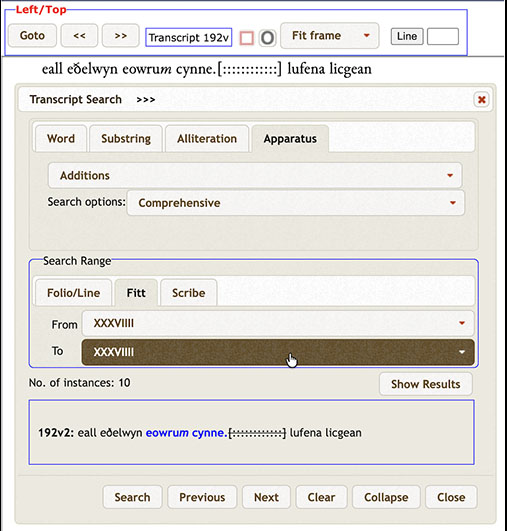
The search result shows that there were 10 scribal additions for Fitt XXXVIIII.
A Folio/Line search for Partly covered letters in the whole manuscript reveals 674 examples.
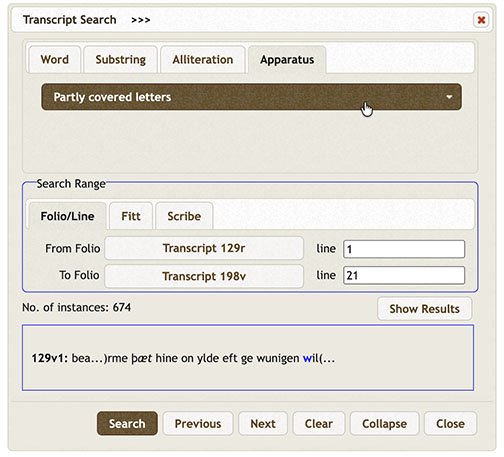
In addition, using the Folio/Line references in the search results in conjunction with a split screen view of Transcript and Beowulf Manuscript, one can examine the searched feature in the manuscript itself as well as access more information by clicking an applicable image map.
For a richer understanding of the results of searches, one should view them against the corresponding manuscript images and the image-based textual notes. By clicking the red square  on the toolbar, all readings with textual notes are activated on the folio.
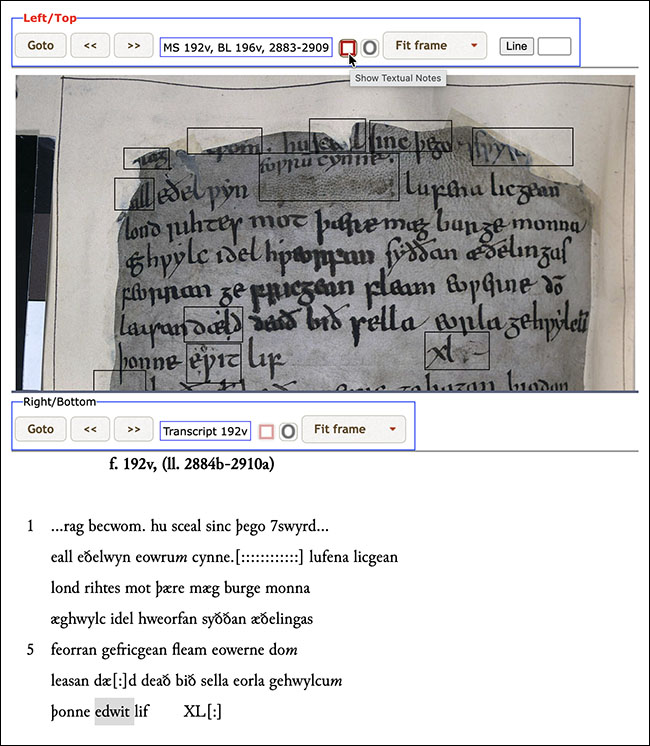
Consider, for example, the scribal addition of d above the line to correct the misspelled word element ewit- to edwit- (edwitlif, "disgraceful life, life of shame") at fol. 192v7. The word e(d)wit in line 7 is now outlined among the many image sources of textual notes.
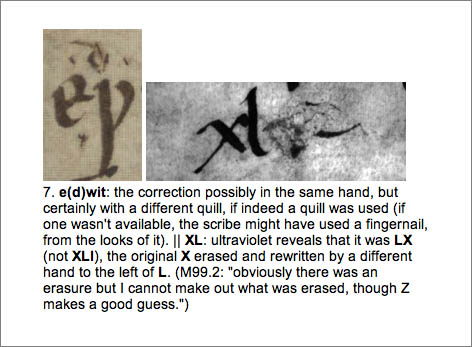
Click inside the outlined reading to open its textual note. Click any image in a textual note to get a closer view.

The features of 'Transcript Search' are too numerous to demonstrate individually. For a complete list of features see Outline of Transcript Searches and Details of Transcript Searches for a wide range of examples.